
Before you start
Have confirmed product facts, destination links and an appropriate audience. Sending requires a configured channel and the right permissions.
A recognisable example
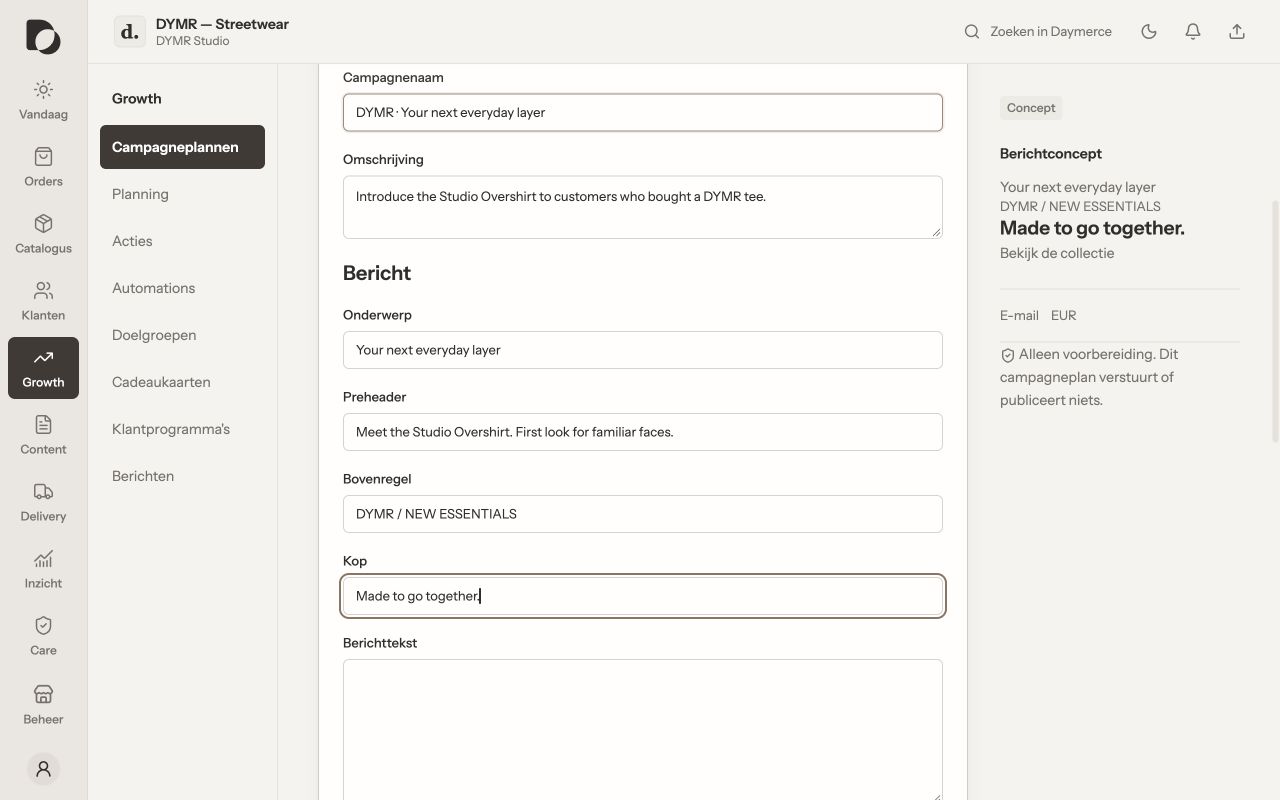
DYMR prepares a short launch email: one product story, one useful image and a clear button to the relevant product.
Step by step
- Open Mail Studio and create a document. Choose a suitable starting template, such as a campaign or order update, rather than reusing an unrelated message unchanged.
- Set the subject and preview text. Add or edit blocks, images, product information and the action button. Check personalisation and image descriptions.
- Review the desktop and phone previews. Follow the intended destination links and check the marketing footer and unsubscribe information where required.
- Save the document and review its checks. Continue through the appropriate campaign or sending workflow and inspect its outcome separately.
What you should see
The message is prepared and stored. A saved document or clean preview does not mean that a campaign has been activated or an email delivered.
If it does not work
A token is unresolved or a link is wrong? Correct the document before sending. If sending is unavailable, check channel setup and permissions; copying a document into a campaign does not configure a provider automatically.
Menu names and available actions depend on your app language, permissions and connected shop. Screens show the real Daymerce interface with fictional DYMR data; original screen labels are preserved.