
Before you start
Upload a suitable original to the shop. Your host needs supported image processing and a working background scheduler.
A recognisable example
DYMR wants fabric detail to remain visible on an overshirt while a phone should not download a needlessly large image.
Step by step
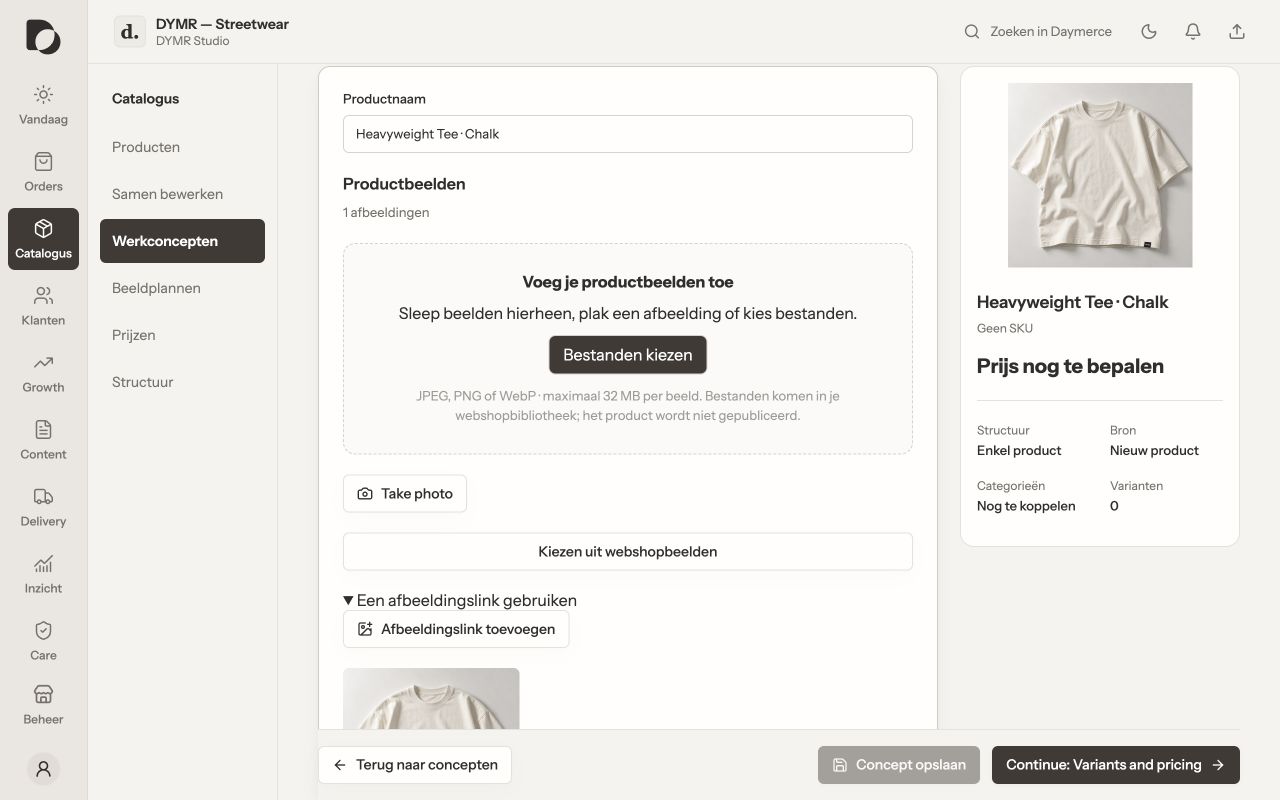
- Check the original and the product's main image. Remove a wrong or unsuitable source before starting optimisation.
- Open Care, then Speed & images. Review the available checks, queue state and any reported processing issue.
- Allow the shop's background processing to finish. Compare the resulting product image on a phone and desktop; check sharpness, crop and transparency where relevant.
- Keep the original available. If a variant fails, investigate the job before repeatedly uploading or replacing a good image.
What you should see
The shop can use locally generated image variants where its renderer supports them. Optimisation alone does not prove a faster whole page or repair an unsuitable source photograph.
If it does not work
Jobs stay queued? Ask your agency to check the shop scheduler, Imagick or GD, storage and image limits. With very little visitor traffic, the normal visitor-triggered WordPress scheduler may need a reliable hosting schedule.
Menu names and available actions depend on your app language, permissions and connected shop. Screens show the real Daymerce interface with fictional DYMR data; original screen labels are preserved.