
Before you start
Know which combinations you actually sell and how stock is recorded. A product-level total may not describe the availability of an individual size.
A recognisable example
DYMR sells a tee in Chalk and Ink, each in three sizes. Chalk M must not borrow the stock or image of Ink L.
Step by step
- Open the product and review its attributes and variants. Include only combinations that you can supply.
- Check each variant's identifying information, price, stock settings and image where relevant. Keep an existing SKU stable unless you deliberately change the identification.
- Review warnings for missing or conflicting values. Save the changes, then use the publication workflow rather than assuming every edit is already live.
- Open the shop and select several combinations, including one that is unavailable. Check the displayed price, image and purchase behaviour.
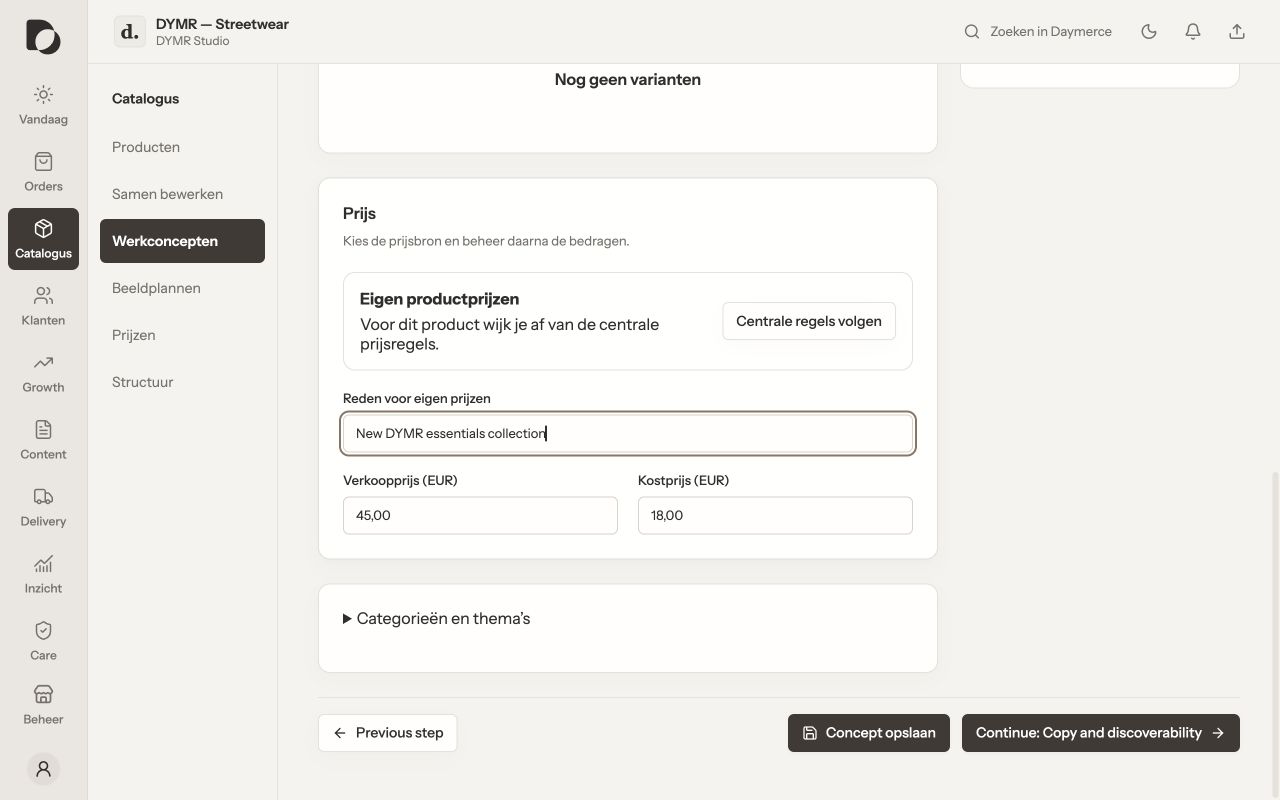
What you should see
The customer can choose the intended combination and your team can recognise it when handling an order. Stock still changes as purchases and source updates occur.
If it does not work
An unavailable variant looks purchasable? Compare the actual WooCommerce variant and stock policy with the published page. Ask your agency to check stale frontend data before editing every stock figure.
Menu names and available actions depend on your app language, permissions and connected shop. Screens show the real Daymerce interface with fictional DYMR data; original screen labels are preserved.