
Before you start
Use your own phone, a current browser and a stable connection. Sign in at my.daymerce.app and select your shop.
A recognisable example
On the train, a DYMR customer asks about an order. The owner opens the customer history, checks the order and prepares an accurate reply.
Step by step
- Open the menu and choose the task you need: Today, customers, conversations or orders. Check the shop name before editing.
- Open the relevant record. Read the details and any warning about stale information; do not rely on a notification alone.
- For a message, review the recipient, channel and final wording. For packing, check the actual items at the packing table before confirming them.
- After saving or sending, wait for the result. If reception drops, check the existing record or action status before submitting it again. Sign out on a shared device.
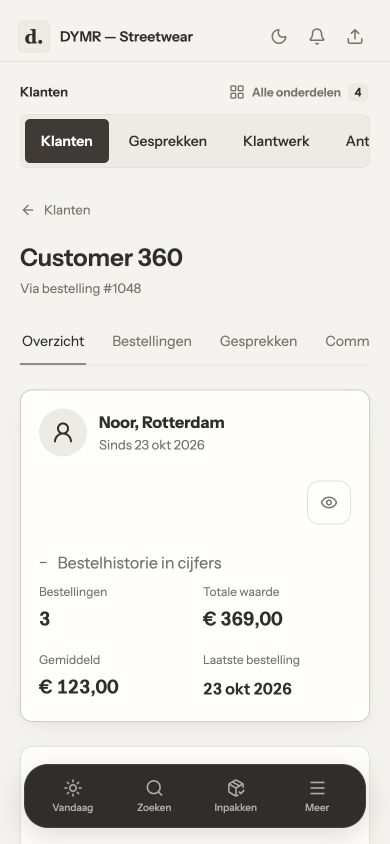
What you should see
You can complete a suitable task without returning to a laptop. Mobile access does not make a disconnected phone a fully synchronised offline workspace.
If it does not work
Cannot find an action? Look in the record menu and check your permissions. If a page keeps loading, restore the connection and reopen the record; avoid repeating a payment, publication or message while its outcome is unknown.
Menu names and available actions depend on your app language, permissions and connected shop. Screens show the real Daymerce interface with fictional DYMR data; original screen labels are preserved.