
Before you start
Choose the correct shop. Have an order number, customer name or email address ready if you are looking for a specific purchase.
A recognisable example
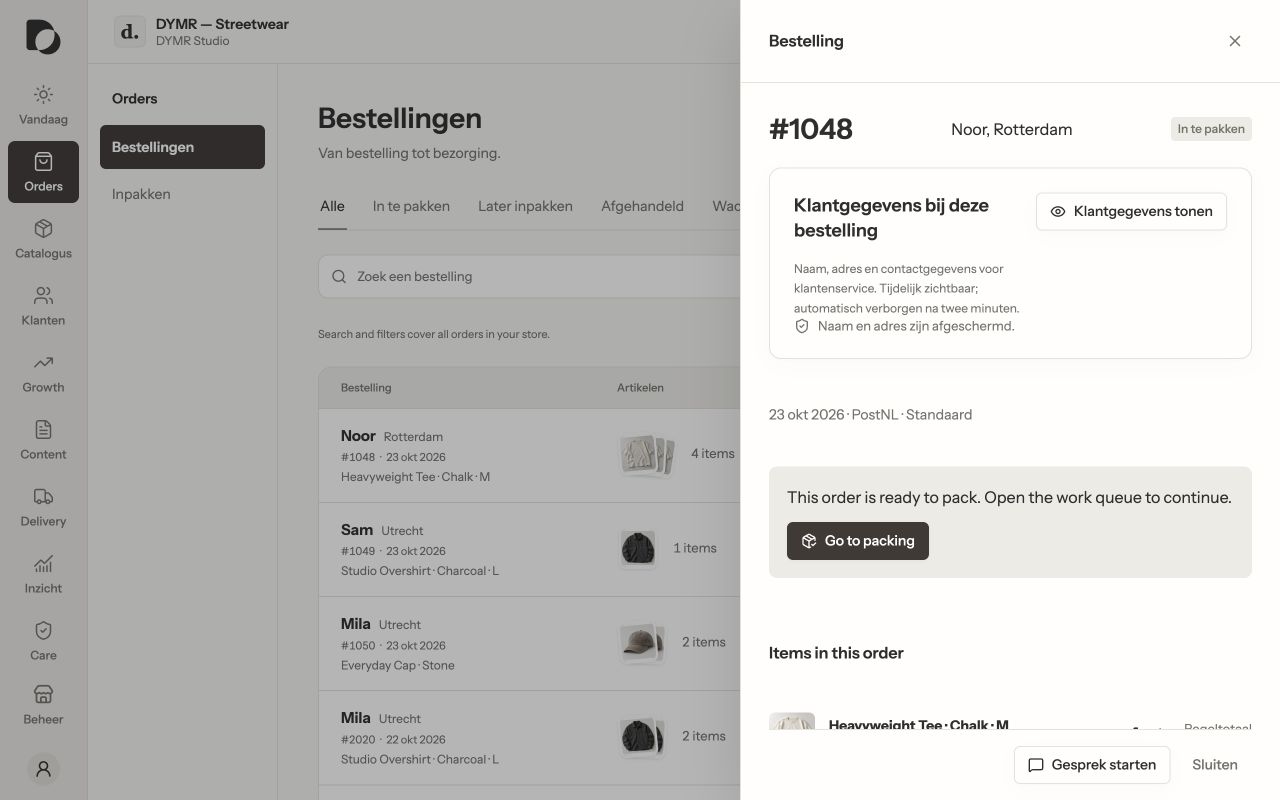
Noor asks DYMR about order #1048. The owner opens that order and checks the actual items and state instead of answering from memory.
Step by step
- Open Orders and use the available search and filters. Check the active filter if you cannot see the order you expect.
- Open the order and verify the customer, products, quantities, delivery information and relevant notes.
- Choose the next task from the order context: inspect the customer, prepare a reply or open the packing flow. Review any action confirmation before proceeding.
- After a change, inspect the refreshed state. For payment, refund or dispatch questions, check the source confirmation rather than inferring success from a closed dialog.
What you should see
You know which order you are handling and why the next action is appropriate. An order can be packed without being handed to a carrier or confirmed as dispatched.
If it does not work
An order is absent or out of date? Clear filters, refresh and check the connection. Compare with WooCommerce when necessary. Avoid creating a replacement order merely because an import has not yet caught up.
Menu names and available actions depend on your app language, permissions and connected shop. Screens show the real Daymerce interface with fictional DYMR data; original screen labels are preserved.